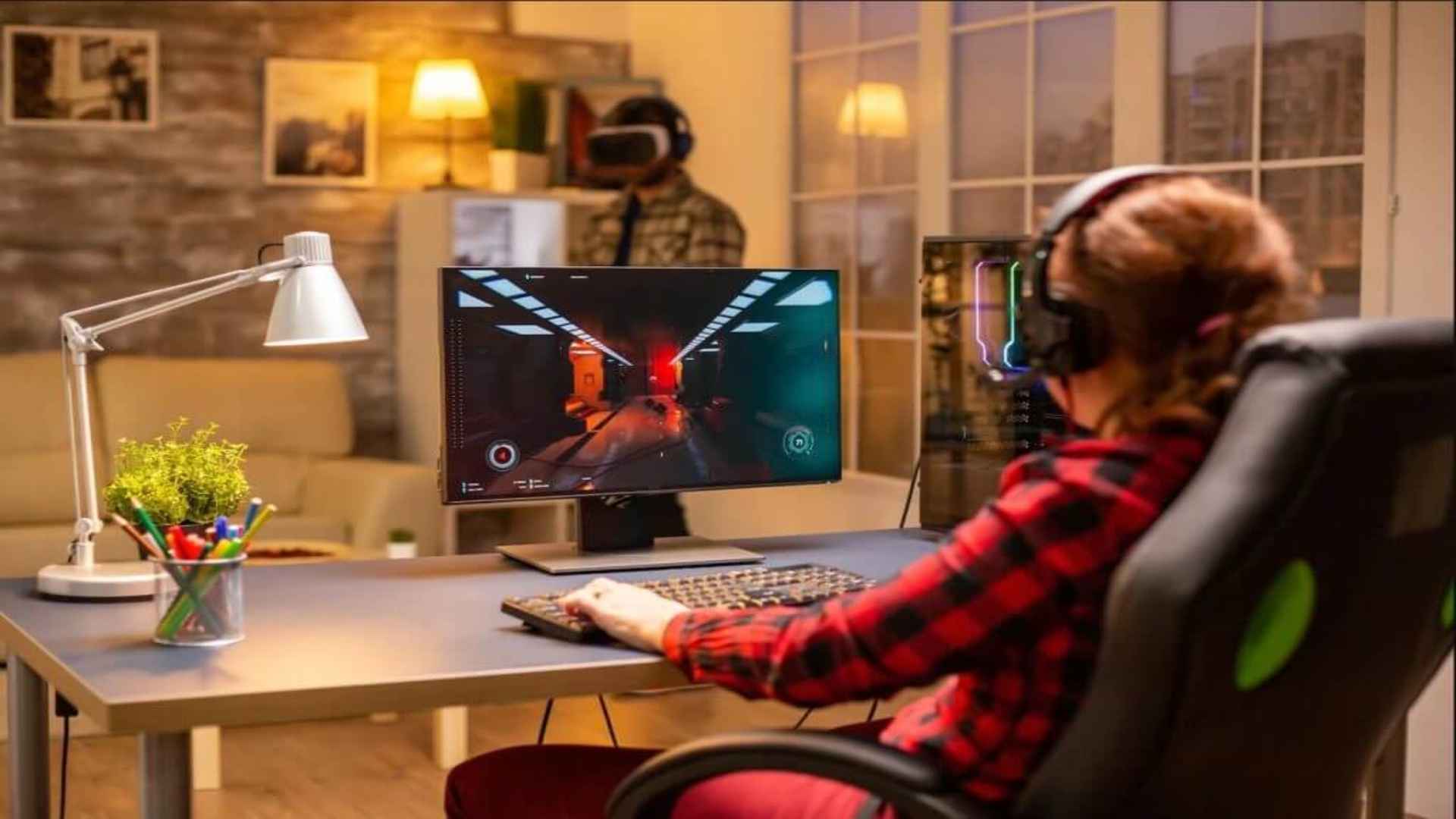
Experiencing sudden system shutdowns or desktop crashes during intensive gaming sessions is one of the most frustrating issues PC gamers face. These unexpected interruptions often happen when the hardware is pushed to its performance limit, triggering internal safeguards or software errors. Identifying whether the root cause stems from thermal stress, outdated software, or failing power components is the first step toward restoring system stability.
Overheating and Thermal Throttling Issues
Modern processors and graphics cards generate massive amounts of heat when rendering demanding 3D environments. If dust buildup blocks airflow or thermal paste dries up, internal temperatures can quickly spike beyond safe operating limits. To prevent permanent hardware damage, your computer automatically shuts down or restarts when critical thermal thresholds are reached.
Cleaning out cooling fans and heat sinks with compressed air can immediately improve system airflow and lower operational temperatures. Monitoring your temperatures using dedicated hardware utility software will help you confirm if thermal throttling is causing your game crashes. Replacing worn thermal pads or upgrading stock coolers offers a long-term solution for demanding gaming setups.
Outdated Graphics Drivers and Software Conflicts
Graphics cards rely heavily on updated driver software to communicate efficiently with game engines and operating systems. Running outdated or corrupted drivers can lead to memory leaks, visual artifacts, and complete system crashes during gameplay. Software running in the background, such as third-party overlays or aggressive antivirus programs, can also trigger fatal game errors.
Performing a clean installation of your GPU drivers using display driver uninstaller tools ensures all corrupted files are removed. Temporarily disabling non-essential background applications and game overlays reduces software friction while running hardware-intensive titles. Keeping your operating system fully updated ensures optimum compatibility with the latest gaming graphics APIs.
Power Supply Inefficiencies and Hardware Failures
Gaming puts a sudden heavy load on your Power Supply Unit as both the CPU and GPU draw maximum power simultaneously. If your power supply unit lacks sufficient wattage or suffers from deteriorating internal capacitors, it cannot maintain stable voltages. This power instability causes immediate computer reboots or black screens without any warning messages.
Faulty system memory RAM or failing storage drives can also cause games to freeze or crash back to the desktop. Running integrated diagnostic tools like Windows Memory Diagnostic helps detect corrupted RAM modules that disrupt active gaming sessions. Upgrading to a high-rated power supply ensures your components receive clean, stable power during intense gaming moments.
Optimizing In-Game Settings and File Integrity
Pushing graphics settings beyond the capabilities of your video card often leads to extreme VRAM usage and unexpected crashes. Lowering demanding options like ray tracing, shadow quality, and rendering resolutions relieves strain on your hardware. Verifying game file integrity through your launch platform repairs missing or corrupted files that cause mid-game freezes.
Adjusting target frame rates using vertical sync or frame caps prevents your components from running at maximum load unnecessarily. These quick tweaks create a balanced environment where software demands closely match hardware capacity. Taking a systematic approach to troubleshooting helps keep your gaming rig reliable and running smoothly.